Pages

Advertisement

Showing posts with label Linux. Show all posts

Monday, December 17, 2007

Top 10 Tips for Linux Users

 Everyone develops their favorite tips and tricks for using Linux based on their own experience and the kind of work they are doing. Here are some of mine. These tips may seem simple, but I've found it's often the simple tricks that are the most useful in day-to-day work.

  1. Switch to another console. Linux lets you use "virtual consoles" to log on to multiple sessions simultaneously, so you can do more than one operation or log on as another user. Logging on to another virtual console is like sitting down and logging in at a different physical terminal, except you are actually at one terminal, switching between login sessions.

    Virtual consoles are especially useful if you aren't running X, but you can use them even if you are.

    In early versions of the kernel (pre-1.1.54), the number of available virtual consoles was compiled into the kernel. With more recent kernels, 63 virtual consoles are available, with 6 set up by default in the file /etc/inittab.

    Use the key combination Alt+Fn to switch between virtual consoles, where Fn is one of the function keys F1-F6. (If you are in X, you'll probably need to use Ctrl-Alt-Fn instead.) Alt+F7 gets you back to your X session, if one is running. You can rotate between consoles with the Alt-right arrow and Alt-left arrow key combinations.

  2. Temporarily use a different shell. Every user account has a shell associated with it. The default Linux shell is bash; a popular alternative is tcsh. The last field of the password table (/etc/passwd) entry for an account contains the login shell information. You can get the information by checking the password table, or you can use the finger command. For example, the command "finger ellen" shows, among other things, that I use /bin/tcsh.

    Related Reading

    Linux in a Nutshell The command chsh changes the login shell for all future logins; that is, it changes the account entry in the password table to reflect the new shell. However, you can also temporarily use another shell at any time by simply running the new shell. For example, if I want to try something out in bash, I can type "bash" at the prompt and be put into a bash shell. Typing either Ctrl-d or exit gets rid of that shell and returns me to my tcsh session.

Print a man page. Here are a few useful tips for viewing or printing manpages:

To print a manpage, run the command:

man <manpage> | col -b | lpr

The col -b command removes any backspace or other characters that would make the printed manpage difficult to read.

Also, if you want to print a manpage that isn't in a standard man directory (i.e., it's in a directory that isn't specified in the MANPATH environment variable), you can specify the full pathname of the manpage, including the full filename:

man /work/myapp/mymanpage.1

If you use the Emacs editor, you can view a manpage with the command Meta-x man; Emacs then prompts you for the name of the manpage. You can view the page or print it as you would any other Emacs buffer.

As a last resort, you can format the manpage directly with the groff command. However, the default output is a PostScript file, so you'll want to either send it to a PostScript printer or to a viewer such as ghostview:

groff -man /work/myapp/mymanpage.1 | ghostview -i

You can get ASCII output with the -a option, but the result is unformatted text. Not pretty to read, but it might suffice if nothing else works.

  1. Use command substitution to simplify complex operations. Command substitution lets you use the output of one command as an input argument to another command. To use command substitution, determine what command will generate the output you want, put that command in backquotes, and use it as an argument to another command. For example, I often use command substitution to recursively grep the files in a directory tree:

    grep 'Title' `find /work -type f -name 'chap*' -print` > chaptitles

    The portion of this command in backquotes is a find command that builds a list of chapter files in the /work directory. That list is then used to provide the set of input files for grep to search for titles. The output is saved in a file called chaptitles.

  2. Look inside a non-text file. Sometimes you really want to see inside a binary file. Maybe there isn't a manpage and you're looking for usage information, or perhaps you're looking for information about who wrote a program or what application a file is associated with.

    The strings command is perfect for that purpose--it searches through a file looking for sequences of printable character strings and writes them to standard output. You can pipe the output through a pager like more, or if you are looking for particular text, you can pipe the output to the grep command.

  3. Use the locate command. Looking for an easier way to find files than the find command? Try using locate. In contrast to find's complexity, locate is the ultimate in simplicity. The command:

    locate <string>

    searches an internal database and prints the pathnames of all files and directories that contain the given string in their names. You can narrow down the search by piping the output to grep. For example, the following finds all files containing the string "kde" that are in bin directories:

    locate kde | grep bin

    The strings don't have to be complete names; they can be partial strings, such as "gno" instead of spelling out "gnome". The -r option lets you use a regular expression (in quotes):

    locate -r 'gno*'

    One thing to be aware of is that locate is case-sensitive: Searching for HOWTO and for howto will give you different results.

    Rather than searching the disk each time, as find does, locate depends on the creation and maintenance of a database. Because it only has to search the database, not the disk, locate is faster than find. On the other hand, the results are only as current as the database.

    The locate database is generally updated daily by a cron job, but you can update it manually by running the command updatedb (usually as root). If you are adding new applications or deleting old files and you don't want to wait for the next day to have an up-to-date database, you might want to run it manually.

  4. Use dmesg to view startup messages. The dmesg command provides an easier way to see the boot messages than trying to read them before they scroll off the screen. When Linux boots, the kernel startup messages are captured in a buffer known as the kernel ring buffer; dmesg prints the contents of that buffer. By default, dmesg prints its output to the screen; you can of course redirect the output to a file:

    % dmesg > bootmsg

  5. Find out what kernel version you are using. Do you ever need to know what version of the Linux kernel is running on your system? You can find out with the uname command, which prints information about the system. Issued with the -r option, uname prints the kernel version:

    % uname -r
    2.2.14-5.0

    Other uname options provide information such as the machine type, the name of the operating system, and the processor. The --all option prints all the available information.

  6. Use df and du to maintain your disk. Use the df (display filesystem) command to keep an eye on how much space each of your filesystems occupies and how much room is left. It's almost inevitable that if you like to download new software and try it out, you'll eventually fill up your disk. df has some options, but running it without options provides the basic information--the column labeled Use% tells you how full each filesystem is:

    % df Filesystem 1k-blocks Used Available Use% Mounted on /dev/hda3 1967156 1797786 67688 96% /

    Oops, time to clean house... and that's where du (disk usage) comes in handy. The du command provides the information you need to find the big space users, by printing the amount of disk space used for each file, subdirectory, and directory. You can specify the directory du is to start in, or let it default to the current directory.

    If you don't want to run du recursively through subdirectories, use the -s option to summarize. In that case, you need to specify all the directories you are interested in on the command line. For example:

    % du -s /usr/X11R6
    142264 /usr/X11R6

    % du -s /usr/X11R6/*
    34490 /usr/X11R6/bin
    1 /usr/X11R6/doc
    3354 /usr/X11R6/include

    97092 /usr/X11R6/lib
    7220 /usr/X11R6/man
    106 /usr/X11R6/share

    With the information provided by du, you can start in the directories that occupy the most disk space and delete or archive files you no longer actively use.

  7. Permit non-root users to mount or unmount drives. While hard drives are normally mounted automatically when the system is booted, other drives such as the floppy drive and the CD-ROM are generally not mounted until they are going to be used, so that disks can be inserted and removed. By default, root privileges are required for doing the mount (or unmount). However, you can modify the entries in the filesystem table, /etc/fstab, to let other users run the mount command. Do this by adding the option "user" to the appropriate entry:

    /dev/fd0 /mnt/floppy auto noauto,user 0 0 /dev/cdrom /mnt/cdrom iso9660 noauto,ro,user,unhide 0 0

    You can see what filesystems are currently mounted, and what options they were mounted with, by looking at the file /etc/mtab or by running the mount command with no options or arguments.


Parmalink

Monday, July 9, 2007

Operating Systems Listing

This article sort of sums up all the reviews of OSes that I have written till date. My intention is (if possible) to review all known Linux distributions and many non-Linux ones as well. But considering the sheer number of Linux distributions around, I guess it is going to take some time. So starting with Linux distributions and then non-Linux distributions, here is the list of reviews you will find on this blog. The operating systems are listed in alphabetical order. This post will be updated as and when I review new OSes...

Linux Distribution reviews
Debian Etch
Debian Etch
Damn Small Linux (DSL)
Ver 2.0 RC2
Engarde Secure Linux
Ver 3.0.14
Gentoo Linux
Gentoo review
Knoppix
Ver 4.0
Kubuntu Ver 6.06 LTS
Open SuSE
Ver 10.2
PCLinuxOS
Ver 0.92
Slackware 11
Slackware Ver 11.0
Ubuntu Dapper Drake
Ubuntu Dapper Drake
Vector Linux
Vector Linux
Non-Linux operating system reviews
Belenix
Belenix review
FreeBSD
FreeBSD 6.0
FreeDOS
FreeDOS ver 1.0
PC-BSD
Ver 1.1, Ver 1.3.4
Sun Solaris 10
Solaris 10

Kubuntu 6.06 LTS - An excellent Linux distribution based on KDE

At the time of the official release of Ubuntu Dapper Drake, I happened to visit the site of Kubuntu - the alter identity of Ubuntu. And on an impulse, I ordered a CD of the latest Kubuntu 6.06 LTS which was also released more or less at the same time as Ubuntu Dapper Drake but with a lot less fan fare. I forgot all about it till a couple of days back, when I received the single CD I ordered enclosed in a beautifully designed blue CD case.

This is one aspect of Ubuntu/Kubuntu I really like. They send you the CDs free of cost and they ship it to any place in the world and I believe this has helped in a large way in catapulting Ubuntu as the most popular Linux distribution.

Fig: Kubuntu desktop featuring KDE 3.5.2

By the time I received the Kubuntu CD, I was very excited and raring to check out what Kubuntu had in store for the Linux users. I found that there is a great level of overlap between Kubuntu and Ubuntu in that the way it boots up is the same for both the distributions. And Kubuntu also uses the same installer bundled with the Ubuntu live CD which makes it possible to install Kubuntu in a mere six steps. More over, all the Kubuntu specific packages are in the same archives as that of Ubuntu.

The end result is that an Ubuntu user can install all the Kubuntu specific packages by running the following command:

$ sudo apt-get install kubuntu-desktop
... and vice versa.

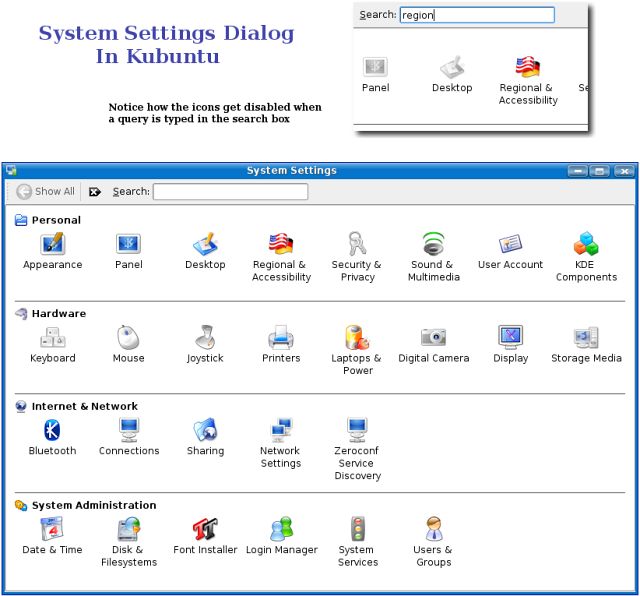
Kubuntu 6.06 has KDE 3.5.2 which is the latest version of KDE and so comes with its own set of improvements. One of the most noteworthy is the system settings dialog. In the earlier versions of KDE, the system settings which includes configuring hardware, desktop and any other thing related to KDE had their own separate dialog which made it rather confusing to navigate. In the KDE that is bundled with Kubuntu, all the configuration settings can be accessed from a single location which is the system settings dialog - Windows users will find it similar to the Control Panel but much more intuitive.

Fig: System settings dialog is much more intutive

Another thing which I found exciting was the inclusion of search as you type feature in each of the windows - be it the file manager or the system settings. And one has to just type the query string and the files matching the query will be selected in real time.

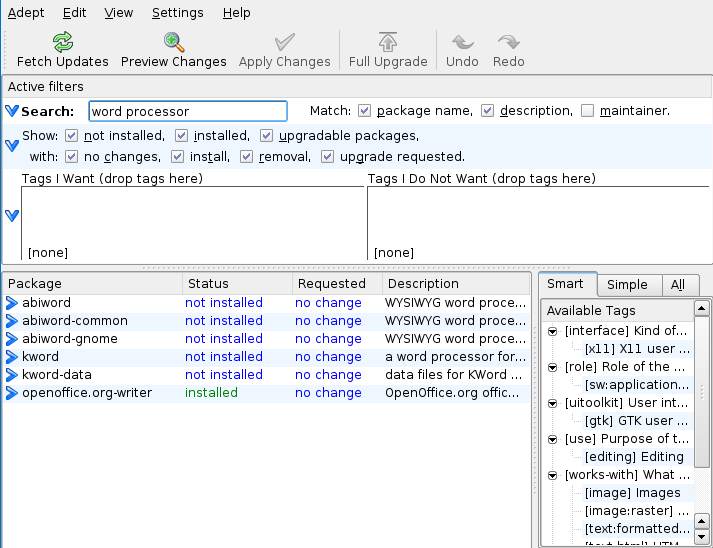
And to install additional programs, Kubuntu comes bundled with Adept - the installation manager similar to Synaptic found in Ubuntu. Here too, there is a search box and one has to just start typing and the results will be filtered as you type. I found this software to contain additional features such as tree view and advanced search with more options which made it a better option than synaptic.

Fig: Adept package manager in Kubuntu

KIO Slaves

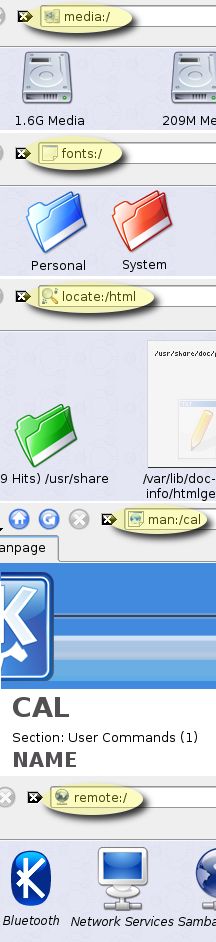
Of course, the one feature I really like in KDE and which is a prominent reason to use Kubuntu is the KIO slaves. What this translates for the end user is ease of use and lesser dependence on the shell. KIO slaves (KDE Input/Output Slaves) are programs that provide support for individual protocols. For example, I can view a man page, locate files on the system, ftp to a remote location, browse through any windows shares on my network, ssh to a remote machine and much more from within the file manager konquorer which by the way also acts as a web browser. Some of the useful KIO slaves which I found interesting are as follows:


  • man:/command - This will show the man page of the command in Konquorer in a nicely formatted manner.
  • locate:/query - Locate files which match the query and show it in Konquorer. Under the hood, the protocol uses the locate command.
  • ftp://ftp.anothermachine.com - Will ftp to the remote machine and display the files in the location. If the username and password are required, it will ask for it.
  • fonts:/system - See all the system fonts. But the users can also view the per user fonts by navigating to fonts:/user
  • settings:/ - This will show all the system configuration links such as hardware configuration, display settings, desktop settings and so on.
  • fish:/ - allows one to access another computer's files using the SEcure Shell protocol. The remote computer needs to be running SSH daemon.
    Eg: fish://username@hostname[:portnumber]

Fig: A subset of KIO Slaves put to use in Kubuntu

All the commands are to be entered in the address bar of Konquorer. But I found that some of them also work in file open dialogs or the run command box and so on in KDE. The above list is only a small subset of the entire KIO slaves supported in KDE. The last time I looked, KDE supports nearly 50 different KIO slaves which includes one for tar, gzip and bzip2 archives.

Kubuntu is no doubt a very polished distribution bundled with the latest version of KDE. Unfortunately, it has till now been overshadowed by its big brother Ubuntu to a large extent. But when KDE releases version 4.0 some time next year, I am sure it will gain more popularity than it now has and hence claim its rightful share in the lime light.

Wednesday, July 4, 2007

Although I don't intend to keep daily journals of my trials of various Linux distributions this summer, I will chronicle the first day I spend with each distro. The first day with any new operating system (or variant) is a day when "first impressions" are conceived and ultimately, judgment is made (I know, I know, one is not to judge anything at first glance, but who doesn't form a bias for or against something after the first encounter?). And so, after slight delay, I start my adventure into the wide (wild?) world of Linux distributions: First stop, Fedora 7.

The Install:

Installing Fedora was very straight forward. After choosing my default language and keyboard layout, I was met with some partitioning options. Opting for a "custom setup", the partitioner that the Fedora installer provides leaves little to be desired for a basic install. I was able to select which disk partitions I wanted to use, which of these I wanted to format, and where I wanted each partition to be mounted. I chose to use my home partition from my Ubuntu install, and everything appeared to work well.

Along the install process I was also able to chose whether or not to install a boot loader. I chose yes, and was presented with options on adding other distros to boot. By default, it detected Windows on my first hard drive, but failed to notice Ubuntu. I added the root partition where Ubuntu was installed on to the list, but upon boot, I did not see an entry for Ubuntu in the GRUB menu. This was not a huge problem as I was easily able to manually edit the GRUB menu.lst file and add an entry for Ubuntu. For first timers to Linux, the most important issue was that the installer detected Windows, and allowed for an easy dual boot setup.

As with all installs, I was asked which timezone I was in after which I was asked to set the root password.

Moving on, I was offered to customize my package selection. Choosing to do so, I was able to select or de-select large package groups, such as games, office productivity, editors, and others. This step also presented me with an option of which desktop environment to install. I generally like to see a more detailed and customizable approach to package selection, as openSUSE and other distros provide.

EDIT: Upon reviewing the installation process in a VMware virtual machine, I noticed that one can in fact choose exactly which packages to install. This can be done by click on "Optional Packages."

Including configuration, Fedora 7 took a little over half and hour to install.

Overall, the installer was very simple to use, but also surprisingly powerful. Instructions were always readily available and one could read the release notes at any time.

Initial Boot:

As I mentioned before, the installer did not manage to add Ubuntu to the GRUB menu, however I was able to load Fedora without any problems.

While the OS was loading, I notice that my screen was way off, and that a good 2 or so inches were off the screen. Adjusting my monitor did not help this problem. Apparently my resolution was not detected and the nVidia drivers were not installed.

Next problem came when startup tried to activate my network connection, which it thought was an Ethernet connection. It took forever to realize that it just wasn't going to get ip information from a non existent connection, and finally just [FAILED].

The setup following installation held no surprises. I was asked if I wanted to configure a Firewall and if I wanted to enforce SELinux. After this I was asked to set the date and time. Next came a screen outlining my hardware profile which I was asked to send in to Fedora to help with development. Since my internet connection did not work at that point, I had to choose not to send the information. Then came user creation and finally a test of my sound card (it worked).

On attempting to log on I was presented with a wonderful error saying that I didn't have permissions to my own home directory. This did not let me log on, and even made X crash. Interesting error considering I just installed the operating system. I messed with a few permission but nothing worked. Then... it dawned on me: I shared this home partition with my Ubuntu install and I have the same user name with both. So, it created the new "linnerd40" folder in the home partition over my other "linnerd40" folder from my Ubuntu install. However, the "linnerd40" folder was still only accessible to Ubuntu. Great. Since time was running rather short, I decided to go for another install, this time just letting the root and home partitions be the same (not the way I like to set stuff up). This worked.

Before going any further, I added Ubuntu to the GRUB menu.lst file so that in the case of an emergency, I had at least one stable operating system to boot into. I rebooted and tested going into Ubuntu. Everything worked, until login. I received the same error as I had when I tried to log into Fedora. Apparently, when tampering with the permissions in Fedora, I had screwed up access to my own home folder in Ubuntu. I messed with some more permissions and ended up fixing the problem (with some help from the Internets) using the following commands:

sudo chown -R linnerd40 /home/
sudo chmod 700 /home/

Yay for the command line! Long story short, Ubuntu and Fedora now work.

First Impressions:

After a successful login, I was greeted by a fairly decent looking Gnome desktop. The new "Flying High" theme is not going to be winning any awards but appeals more to me than Ubuntu's "Human" theme. First on my list of problems to fix was the screen resolution. After pulling the latest copy of nVidia's Linux driver from my flash drive, I killed X and went into run level three (run: /sbin/init 3) for the install of the driver. However, installation failed when it detected that gcc-devel was not installed. So, I got back into X and searched for an application for installing packages. I found an "Add or Remove Programs" entry in one of the menus and tried that. However, it gave me an error saying that package information could not be retrieved due to lack of a network connection. I popped in the Fedora 7 DVD and tried installing packages from there. I found the .rpm file I needed in the FEDORA directory on the DVD, but upon trying to open the file to install it, I received the same error. This was extremely aggravating as installing from a .rpm file that was present on my hard drive (I copied it from the DVD) should not require a network connection. So, I went with the command line method of:

rpm -ivh package.rpm
This worked... but immediately I found myself in dependency hell. To install gcc, I needed glibc, but I also needed glibc-devel which needed glib-headers which needed the kernel-devel package. Perhaps that wasn't quite the order, but needless to say, I was searching for and install packages for a quite while. RPM dependency hell was why I stopped using SUSE. Apt is a much more efficient method of package management and I don't see why a distro wouldn't use it.

EDIT: Upon reevaluation of Fedora 7 in my VM (with working Internet), I see that some of what I said above is unjust. Yes, RPMs do have a tendency to lead to dependency hell, as I experienced much with SUSE and previous versions of Fedora. However, yum (the package manager used in Fedora) does handle dependencies quite well, much better than I had remembered. A simple:

yum install gcc
fixed my problems. Still, I prefer apt/ Debian style package management over RPM any day.

After going through hell to get all the packages I needed, I was finally able to install the nVidia driver. I then set my screen resolution using the nVidia- xconfig tool and was well on my way to a more pleasant desktop experience.

The next problem I wanted to tackle was wireless support. Although my card was detected (rt2500 chipset), it was impossible to configure it correctly. Using this guide I was able to get very close to success, but I continued to get errors when trying to activate the device. As of yet, I have not found a fix.

So far... :

So far, my experience with Fedora has been less than enjoyable. However, I hope that after spending a week with Fedora, I will change my mind. It seems like a very stable and thought-out distribution. The default package selection is excellent using Firefox for web browsing, GIMP for image manipulation, Pidgin for instant messaging, Rhythmbox for multimedia playing, and many other stable software selections to fulfill the daily needs of any average computer user. The Fedora team has made a great effort to provide a usable, friendly installer while allowing for advanced configuration and has done so superbly. Back when I first started with Linux, Fedora Core 4 was one of the first distros I tried to install. I had to give up on it since my wireless card was not detected, and at the time I did not know how to fix such problems. Fedora has definitely evolved since Core 4, and I am certain that once I get my wireless card working I will be able to see its true power.

More On Fedora 7: Wireless Woes and Second Opinions

fter my second day using Fedora 7, I believe that enough of my opinions have changed to warrant a second post about the distro. Lets jump right in:

Wireless Woes:

Still no wireless Internet. This is becoming a rather vexing problem, as I have yet to find a solution to what may be the biggest problem I am experiencing with Fedora 7. After trying a multitude of drivers, both from the rt2x00 project (rt2x00.serialmonkey.com) and the official Ralink Linux drivers, I have yet to come upon a driver that works (some don't even compile) and is properly recognized. A quick Google search for "rt2500 fedora 7" shows that I am not the only one with this problem. The guide on the "Life With Linux" blog looked very promising, however when I try to activate the wireless device I get the following error:

rt2500 device wlan0 does not seem to be present, delaying initialization


This error just won't go away, and seeing as I cannot accomplish much without a working Internet connection, I have had to resort to "Plan B" for now:

A New Testbed:

Since Fedora 7 stubbornly refuses to allow configuration and activation of my wireless card, I have gone ahead and installed Fedora 7 in a virtual machine using VMware Workstation. In doing so, I now have a working internet connection. Until I get my wireless issues worked out on the physical install, I will be using the virtual machine off my Ubuntu install. Hopefully, I can in this way more justly review Fedora 7.

Package Management:

My last post has received a number of comments criticizing my criticizing of the RPM package management method. I must admit that bad experiences with SUSE and RPM in the past have made for my biased view against RPM. My comments on the system where perhaps not fully justified as I have yet to truly experiment with Fedora's "yum" system. This system, as a reader pointed out, is pretty much apt-get for RPM. After some experimenting in my virtual machine, I must say that yum is doing an excellent job of managing dependencies. However, I have yet to try to install applications I randomly grab from the internet (these were the ones that often threw the weirdest dependencies at me in SUSE).

Another aspect of package management that many people fail to consider is the repository. Repositories are where your packages come from, so to say. They are places where people have created huge compilations of applications, and (hopefully) their dependencies, for you (the user) to chose from (think of them as apple trees, and the packages are the apples). A good repository means a pleasant experience finding and installing packages. Ubuntu has a wealth of excellent repositories which encompass nearly ever package available for the distribution. Rarely must I go out and find a dependency for a package I want to install. Say I am compiling from source, and I need a specific library to properly compile the package. I have always been able to simply apt-get the library instead of having to search for the library and compile it from source. I am hoping that Fedora will be the same way.

Tomorrow I will begin the journey to find the best repositories for Fedora 7. When I have found these, I will proceed to test the RPM system and uncover the true power of yum. I am hoping that I will end the week with a more informed opinion of RPM and Fedora 7.

One More Annoyance:

One truly annoying error I keep getting when using my physical install of Fedora is the inability to use a GUI for installing RPMs, even when straight off the Fedora DVD. The error is apparently linked to my non existent internet/ network connection.


I receive this error even when selecting an RPM that I have right in front of me, as in...on the Fedora DVD. Perhaps this again is a case of a poorly configured repository (maybe it doesn't realize that the DVD is there to be used). I will see about fixing this tomorrow if I can find where the repositories are configured in Fedora (something like apt's sources.list file?). Still, one would think that such a situation be accounted for automatically.

What I'm Liking:

Fedora feels... nice. Not sure how to describe it, but it feels elegant. Not over done, but with noticeable attention payed to detail. Fonts are clear and crisp, colors are appealing to the senses, and even the "Flying High" / bluish theme is really growing on me (I have however changed the desktop wallpaper). Also, performance is noticeably snappier than Ubuntu. Applications open quickly and respond smoothly and instantaneously. Windows dragged around update position at once, leaving no trail behind them (this is a problem I have been recently experiencing in Ubuntu). Overall, the distro's look and feel is very professional but light enough to fit in any environment.

More on Fedora 7 in later posts!

Yay for yum and yumex!

It seems as though my postings on Fedora 7 have become a daily occurrence now. There is much to say, and the more time I spend with Fedora 7, the more I like it!

I believe my bias against RPM is beginning to leave me, and I am beginning to see that RPM is a very viable package management system. The reason for this sudden support of RPM is yum. Yum is awesome. I could leave it at that... or continue. Let's continue, with a bit of history to start stuff off.

Part of the reason I like the Debian method of packages management is because of apt. Apt makes installing and updating so incredibly easy, I never have to worry about dependencies or anything of the sort. I just "sudo apt-get install package" and its done.

When I was working with SUSE back in the 9.0/ 10.0/ 10.1 days, Yast was the only viable method I had for installing packages. Needless to say, it often didn't work out too well. Its then lack of support of gpg keys and rather poor mirror/ repository management made finding myself in dependency hell a commonplace occurrence. After moving to Ubuntu, I didn't think I'd ever try RPM style package management again. Until now.

Like I said, yum is awesome. Yum and Fedora 7 have really made me reconsider RPM based distros. Not only is yum extremely easy to use, but it also handles dependencies excellently. This again probably has to do with the repositories too, but so far I have not come across a package that I couldn't install due to dependency conflicts. The Fedora 7 package installer is also excellent, although a better application to manage your packages is Yum Extender:

Yum Extender, or yumex for short, is a great extension to yum. Just as synaptic is a GUI to apt, Yum extender is a GUI for yum. It is a very powerful GUI which lets you easily select what repositories to use (and not to use), install, update, remove packages from list of available packages, and quickly search through all packages. If you doesn't feel quite confident with CLI yum, but want more features than the standard Fedora package installer, yumex is the answer.
Installing yummex is just about as easy as managing packages with it! Simply yum it:

su
yum install yumex

Although a simple screenshot doesn't do it justice, here is hint of what yummex has to offer:


UPDATE: There is one downside of yumex that I failed to mention before. Fact is, yumex is slow. It just will not deliver top-notch performance. This is perhaps its only downside, but one with fairly major implications if you are one wanting instant gratification. Still, yumex is an excellent GUI for Linux newcomers and is great for looking up that occasional obscure package or getting information about available updates.

As for repositories, I have found rpm.livna.org to be excellent. Anything that isn't included in the default Fedora repositories can be found here. That means that through livna you can find packages enabling mp3 and dvd playback, along with the new NTFS driver for read/ write support of your NTFS/ FAT32 disks (a HOW-TO on enabling these features in a later post).

I'm liking Fedora 7 more and more now that I have it fully working in my VM. I continue to customize Although my wireless problems remain unsettled in my physical install, I must say that I could have done more research on the topic before installing. My bad I guess, although full wireless support right out of the box would have been nice :)

Fedora is shaping up to be an ever more excellent distro. I would definitely recommend it so far, although perhaps not to complete beginners with Linux as there is still a bit of tweaking that goes into getting everything just right. But, as far as that goes... there is nothing that can't be fixed with community help :-)

Open-Source R500 Driver Released


The very first (and very rudimentary) open-source Xorg driver for the ATI Radeon X1000 "R500" series has been released! However, before downloading it, this driver only contains code to initialize and set video modes on the Radeon X1300 to X1600 graphics cards. RandR 1.2 support for the R500 driver is being worked on and may surface shortly. Their current road-map is for getting the Radeon X1600 to X1900 series initialize using this driver, add the RandR 1.2 support, add simple 2D acceleration, work on R500 3D reverse engineering, and implement TTM DRM for memory management. Today's first open-source driver release for the R500 series is available through git on FreeDesktop.org. As this driver progresses we will provide additional information and ultimately benchmarks. The release announcement can be read on the Xorg list.
Great to hear that something is being done about the horrible state of ATI Linux drivers! Although the drivers won't be bringing you the latest and greatest 3D acceleration, this is a very important step towards full ATI card support in Linux. As it stands, cards from the X1300 series up to the X1600 work:
The code released today is able to initialise and set video modes on rv515 and rv530 (X1300 up to X1600); we still lack proper initialisation for r520 & r580 (X1800 and above, some X1600) because of lack of time and hardware.
On the roadmap:
  • Find out missing bits for r520 and r580 hardware initialisation
  • RandR 1.2 support with a dumb memory allocator
  • Simple 2D acceleration (we will put more focus on 3D acceleration as now Xorg provides infrastructure to best utilise 3D drivers to display the desktop, thanks to the Glucose interface)
  • 3D reverse engineering: We believe that this engine is very similar to the r300 3D engine which has already mostly been reverse engineered
  • TTM DRM driver for proper memory management
  • and likely port the driver to new DRM modesetting work.
Sounds good! I can't wait until ATI cards are once again viable options when using Linux. I had been eying the X1650PRO for a while, as it often delivers superior performance to nVidia's 7900GS. However, I guess I'll wait for a 8800GTS :-)

Once again, read the official release announcement on the Xorg list.

So Close, Yet So Far...

Today I once again tried to get my wireless card working in Fedora 7. Still no success, but I believe that I am very near to a solution.
The Linux drivers I was using for the card just weren't working... so why not try the Windows drivers? Using ndiswrapper, I successfully installed the Windows drivers for my wireless card which I got of the driver CD. This was actually extremely simple. After installing ndiswrapper, I found the necessary .inf and .sys files on the Windows driver CD required for installation. To get the driver installed I merely issued the following command in the directory of the .inf and .sys files:

# /usr/sbin/ndiswrapper -i rt2500.inf
After that I ran

#/sbin/modprobe ndiswrapper
Just to make sure that the driver was loaded. After this I opened up the /etc/modprobe.conf file and added the new line:

alias ra0 ndiswrapper
I then proceeded with configuring the card through the Network configuration tool. The card was properly recognized as ra0. After configuring the card, I hit activate and crossed my fingers...
Well, it failed. BUT, it didn't give me the error this time saying that the card wasn't present. It just wasn't able to retrieve any ip information.
I am really hoping that this has brought me closer to solving my problem (which I think it has), but it has also brought me to a sort of road block. It seems as though I have everything configured properly, and apparently the card is detected and it is configurable. So what is missing? What is going wrong? Here are some screenshots of my current situation:


If anybody has any help to offer, I would appreciate it :-) See my thread @ the Fedora Forums.

Enable Complete Media Playback in Fedora 7

As we all know, Fedora 7 ships without support for playing MP3s, DVDs, and many other media types that we are exposed to every day. The default repositories don't offer much help with this problem, but luckily it is an easy one to fix.

First, we must add the Livna repository. This can be done through the following command issued as root:

rpm -Uhv http://rpm.livna.org/livna-release-VERSION.rpm
The Livna repository provides an excellent array of packages to satisfy most all your needs.

To install all the packages necessary to enable MP3, DVD, and other media playback, issue the following command:

yum -y install totem-xine totem-xine-plparser rhythmbox mplayerplug-in mplayer mplayer-gui xine-lib-extras-nonfree libdvdcss libdvdread libdvdplay libdvdnav lsdvd libdvbpsi compat-libstdc++-33
This method was found through an excellent guide on the Fedora Forums. PLEASE READ THROUGH THIS GUIDE. I could reproduce it here, but it would simply be a waste of time as it works splendidly as it is, and will answer all your questions. Check it out to satisfy all your media cravings!

Fedora 7: A Final Look

The time has come to say goodbye to Fedora 7. Over a week has gone by now since I installed the OS on my hard drive and later on a virtual machine. Lets take a short look and see just how Fedora 7 fares as a desktop distribution.

Installation:

Installation of Fedora 7 was a very nice experience. The installer is simple enough for almost anyone to use, but still provides enough power for even advanced users to be satisfied. Although the partitioner offered in the install is not quite as "pretty" as the one the Ubuntu offers, it does seem to have a few more advanced features and certainly does its job very well.

Unlike the Ubuntu installer, the Fedora 7 installer allows for customized package selection. This is a very important feature considering that after installation, if an Internet connection isn't present, software installation (through the package manager) is not possible. In my opinion, this option for customization alone puts the Fedora installer above Ubuntu's.

Overall, installation is a simple procedure that shouldn't take much longer than about 45 minutes, but depends on your package selection.

Hardware Detection:

I never managed to get my RT2500-based wireless card working in Fedora 7. I tried nearly every driver available, and still did not get a connection. The card was always detected but was I was never able to activate the device. I know that out of the box, it is a known bug that Fedora 7 will not allow activation/ proper configuration of rt2500-based card. However, it surprised me that none of the drivers I tried worked... not really sure if it was something that I was doing wrong, or just a stubbornness on Fedora's part. In any case, I am sure the issue will be resolved soon (hopefully in a future update).

Aside from my wireless card not working, Fedora 7 properly recognized all my hardware without any problems. Still, Ubuntu recognized all my hardware, including my wireless card, without flaw, and I didn't have to do any tweaking to get it to work, (just had to fill in my network information under the Network manager to get a working internet connection, right out of the box). Wireless support is essential for me, so I have to hand it to Ubuntu for giving me the best experience in this category.

Installation of the nVidia driver is incredibly easy on both distros, although Ubuntu has a slight upper hand with its "Restricted Drivers Manager". Fedora 7 actually works best with a custom nVidia driver from the Livna repository (follow the link for more information).

Since reviewing a distribution without an internet connection is rather pointless, I went ahead and installed Fedora 7 on a virtual machine through VMware Workstation. All my "virtual" hardware was detected, and I finally had a working Internet connection.

Look and Feel:

Out of the box, Fedora 7 looks much, much better than Ubuntu. The "Flying High" theme is elegant and very appealing, unlike Ubuntu's dreadful "Human" theme. Both the KDE and Gnome desktop environments are available through the installer, and either one can be easily installed after the other. Fonts too look excellent.
For the greater part of the week, I have been using KDE as my primary desktop environment. KDE is great because it allows me to use my beloved SuperKaramba app for awesome desktop widgets! I never really like the default KDE look for any distro, no different for Fedora 7, so I made ample customizations to suite my taste.
As with any Linux distribution, customization is endless, so if you don't like something... CHANGE IT!

Package Management:

Before I used Fedora 7, I had a downright horrible opinion of RPM style package management, mainly attributed to horrible experiences with SUSE. But, after spending just a week with Fedora 7 and yum, my opinion has made a full turn in the other direction. Yum, together with Yumex and the Livna repository, made installation of packages incredibly simple. Never once did I experience RPM hell, even when installing rather obscure, or random apps from the Internet. I really must say that Fedora 7, contrary to my initial beliefs, has proved to be excellent in managing packages.

General Thoughts:

Working with Fedora 7 has been a great experience, rivaling that of Ubuntu. However, although this is an excellent distribution, I feel that there is nothing really special about Fedora. There isn't much that sets it apart from other distributions. It isn't really hard to setup, but it isn't quite as easy as Ubuntu, and once its set up, theres not much to do that I couldn't do with other distributions. Perhaps I have not dug deep enough into Fedora 7, or I may just not have enough know-how to tell when something is spectacular in a subtle way, so I may very well be wrong. Perhaps Fedora 7 shines in areas other than the Desktop (maybe its great for servers, or for corporate solutions), which I was not able to explore. Then again, maybe Fedora 7 is just a great blank slate for you to build an ultimate desktop install, just as you see fit, free from any obstructions. If you have anything to share about what makes Fedora 7 great for you, by all means do so (just comment)!

Recommended?

Sure, why not. Really, there is no reason that you shouldn't use Fedora 7, although there really isn't any reason you should. Setup is easy enough, and all packages are up to date, if not quite bleeding edge. Still, I really do urge you to give Fedora 7 a try, as I believe it holds great potential.

Rating:

Lets say I had to give Fedora 7 a rating in the form of a number 1-10 (1 being the lowest, 10 the highest). I would have to say that Fedora 7 is a 7. The only reason it lost points was because my wireless card, although detected, could not be configured or activated (which may very well be different for other people) and just because the distro lacked that special "something" that would make it really stand out. *Keep in mind this score is very subjective, and only reflects what I feel after using the distro for a week*

Here's a quick screen shot of my final Fedora 7 desktop:

Gutsy Feature Plan

Now that the set of feature goals planned for Ubuntu 7.10 ("Gutsy
Gibbon") has been largely finalised, it seems like an appropriate point
to announce the plan to the world.

While this is based on the approved blueprints for gutsy[0], which are
expected to be implemented in time, we do release according to a
time-based schedule[1] rather than a feature-based one. It is not
unusual for some planned features to be delayed to later releases;
happily it is also not unusual for our developers to introduce neat
features we weren't expecting either.

-> https://blueprints.launchpad.net/ubuntu/gutsy/
-> https://wiki.ubuntu.com/GutsyReleaseSchedule
This is shaping up to be another great release! The best features so far seem to be Xorg 7.3 and the newly merged Compiz and Beryl projects (compcomm/OpenCompositing) for a default window manager. Regardless of what gets done, there are some really good ideas on this post so read up!

Read more @ the Ubuntu mailing list (see links above for even more info).

Amarok 1.4.6 Released!

Simply put, Amarok is the best media player available for Linux. its team of developers has put much working in to the latest release, 1.4.6, which is now available for download! From the release announcement on the Amarok website:
Your very own Amarok team announces the immediate availability of the latest 1.4 series release, 1.4.6.
So, what's new?
  • Funky new icon set, featuring KDE4 Oxygen colors by Landy DeField; for 2.0 he will be working to ensure that Amarok has a complete Oxygen icon set.
  • Default database backend is a lot faster due to a new SQLite version.
  • A gigantic load of bug fixes, the main focus of this release.
  • Introducing rockbox support for iPod.
  • Performance tuning.
  • More wockas per square inch.
  • A miracle in software engineering - we added less people to an early software project and made it later, disproving the Mythical Man-Month.
  • Packaged with FUKITOL.
Looks like another superb release with many improvements on an already magnificent piece of open source software!

Read more @ the Amarok website. Downloads for multiple distributions can be found here.

Lets all give the Amarok Team a big hand for creating one of the best media players in the world! ::claps::

Security Concerns In Linux

Part of the reason I am switching to Linux is, from what I have been told, it is superior to Microsoft Windows in the area of security. I think the reason is at least twofold.

1. People are out to get Microsoft i.e. trojans, viruses, and spyware. Of course when considering the effects of micro-evolution, this only means one thing for Microsoft: it WILL become a better OS. It is inevitable; if Microsoft wants to continue to be a viable secure OS for home and especially business use, Windows will have to continue to improve (evolve) or it will fail. Failure does not make money, therefore Microsoft will spend money to make a better piece of software, bottom line. Moreover, the reverse implication to Linux is true. People are NOT out to get Linux. There are no trojans, viruses and spyware to speak of in the Linux world.

2. The second reason why I believe Linux is superior to Microsoft Windows in the area of security is due to two things. First, there are so many distributions available it makes it difficult for someone with malicious intent to target a large populace because the user base is distributed over different types of Linux OSs. Second, Linux is Open Source. You would have to have many (many) people involved, from different backgrounds, cultures, values, countries, languages to "hide" a security hole in Linux. Even the most paranoid conspiracy theorist would have a hard time developing a theory about "those behind the Linux MACHINE".

As I contemplated these strengths in Linux, I realized something: these strengths are due to the environment in which Linux exists and not something that is necessarily inherent in the actual operating system itself. In other words, if the situation was reversed, if Linux was the major operating system everyone was after, would it stand up to the malicious users as well as Microsoft Windows? I think this is a question worth a serious answer. This is a question to which that I cannot even venture a guess, since I am still brand new to Linux. (Anyone... Anyone... Bueller... Bueller...)

Some would argue that the built-in firewall should be examined when comparing any Linux distribution to Microsoft Windows. I would agree that the default firewall in Microsoft Windows is a poor excuse for a firewall compared to IPTables, BUT third-party firewalls, from what I see, are BETTER than IPTables. Here is why.

Application Control.

I am a user of Outpost Firewall. It is a 3rd-party software firewall developed specifically for Microsoft Windows. I am not here to pitch this software, but I believe in it; that's why I bought it. When you install Outpost, there are few ways you can set it up and I configured it in the most paranoid way possible. ;P This piece of software monitors ALL the network activity coming from my computer, and it allows NOTHING to access even my router unless I say OK. There are automatic settings but I configure everything manually. I can even block Outpost itself from accessing the internet (which does not effect its operation except for updates). I keep Windows XP Pro locked down pretty tight. SVCHOST does not report back to Microsoft because I locked it down to only talk to my router and deal with my DNS. (BTW, if you didn't know, Microsoft has been taking "anonymous" stats from your computer since your first installation of XP.)

All that said, I want my application control on Linux. I will be honest; I do not trust anyone I do not know personally. I like Ubuntu, and from what I can tell the organization is an honorable group. However, I do not know the internal workings of the company, and because of my lack of knowledge, I would prefer to have a little MORE knowledge of what my OS is doing. Things like: when it accesses the internet, why it does, how it does, the duration of the contact, so on and so forth.

I am still learning what IPTables can do. Perhaps packet filtering in the hands of a knowledgeable person would put my application control-based firewall to shame. But I don't know. I like that I can watch what my computer is doing through Outpost. Honesty, Outpost is the ONLY reason I still use my Windows partition. (Well, that and the multitude of games I have.) Maybe someone who reads this article could point me in the right direction. I have read up on IPTables to a degree, tried Firestarter and Guarddog, but in the end uninstalled them. I'm happy behind my stealthy Linksys router without any firewall configured, for now.